
 pigeon
Setup Guide
Recordings
By default, recordings save to your device at Documents/pigeon/.
To upload your recordings to the cloud, connect Google Drive:
- Tap the gear icon (or long-press anywhere) to open settings
- Tap Google Drive → Connect
- Sign in with your Google account
Recordings upload to a pigeon/ folder on your Drive.
Shortcuts
Record on your Mac
Get the Pigeon Shortcut — records audio, transcribes on-device, and saves a transcript to your folder. Launch it from Spotlight or Raycast by typing "pigeon."
One-tap recording shortcuts
Long-press the Pigeon icon on your home screen and tap Record to start immediately. Or set up a system shortcut:
Android: Swipe down twice → tap the pencil to edit tiles → drag Pigeon into your active tiles. Tap the tile to record; tap again to stop.
iOS: Long-press the Lock Screen → Customize → tap the widget area at the bottom → find Pigeon → select the waveform widget. Tap to record from your Lock Screen.
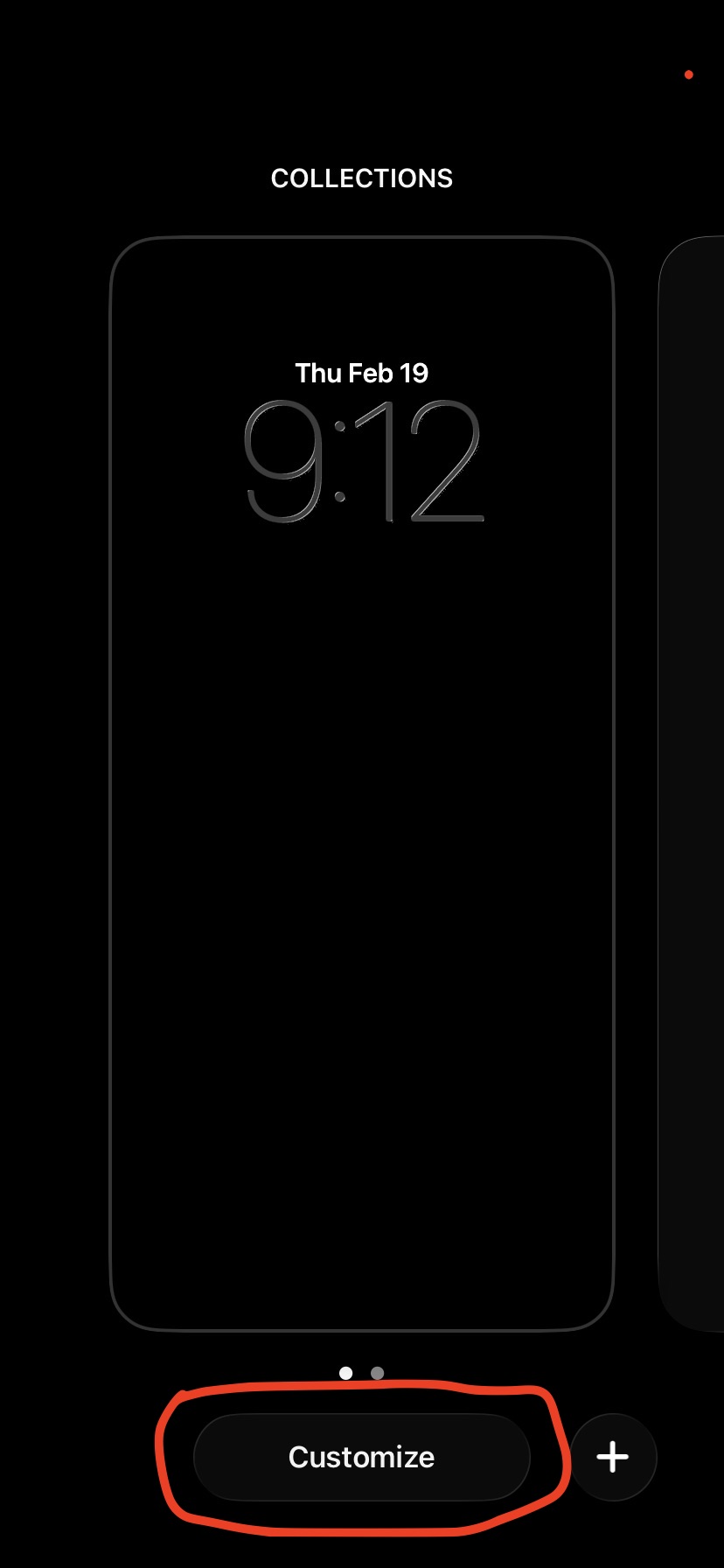 Long-press Lock Screen → Customize
 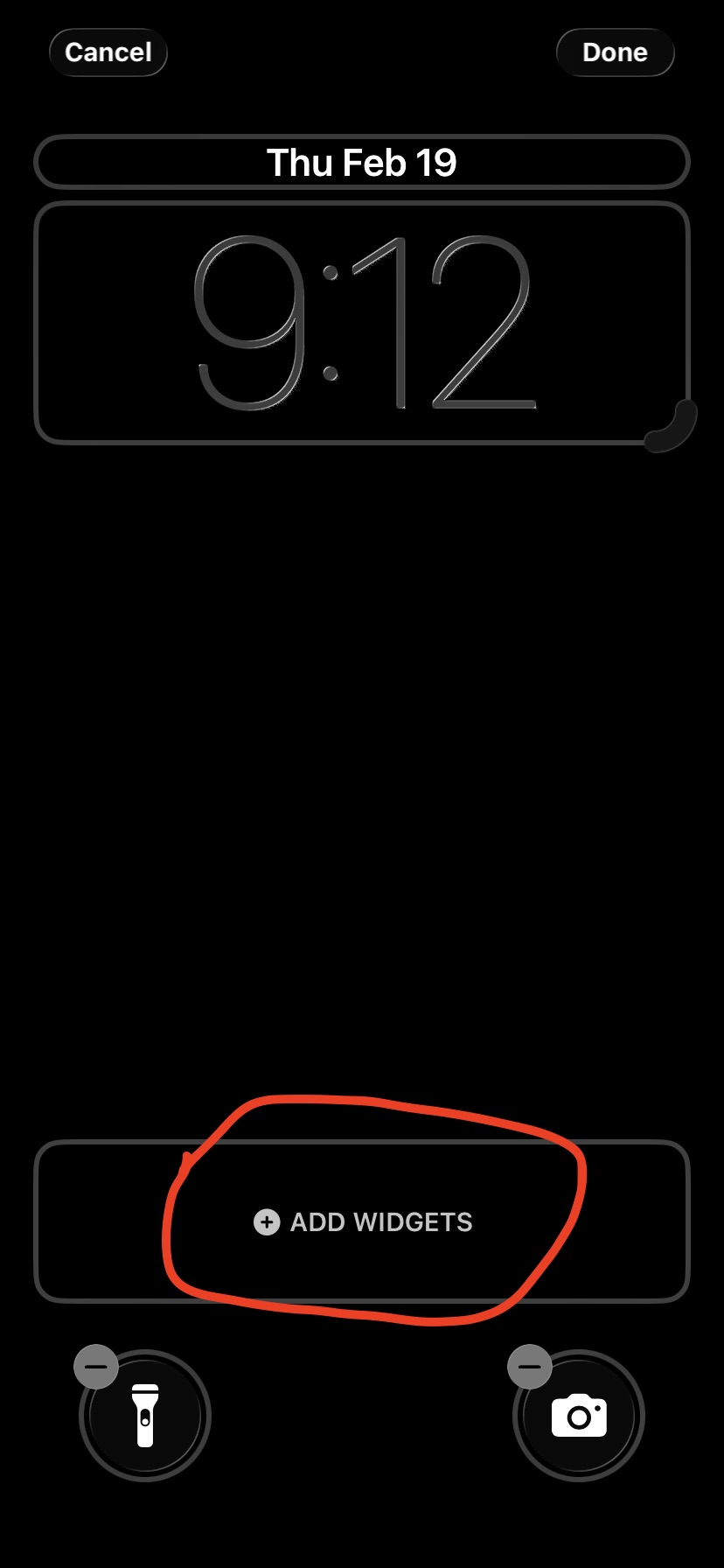 Add Widget
 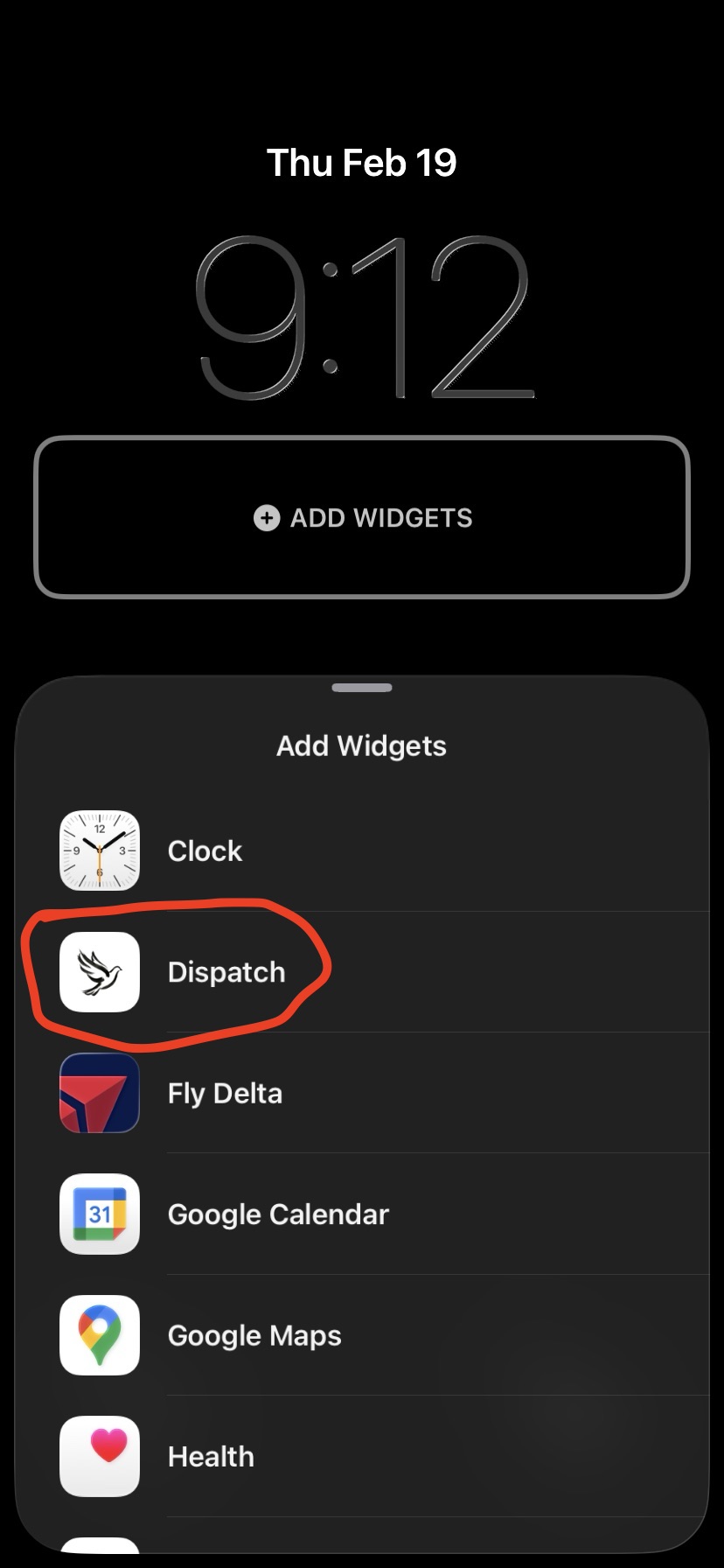 Find Pigeon
 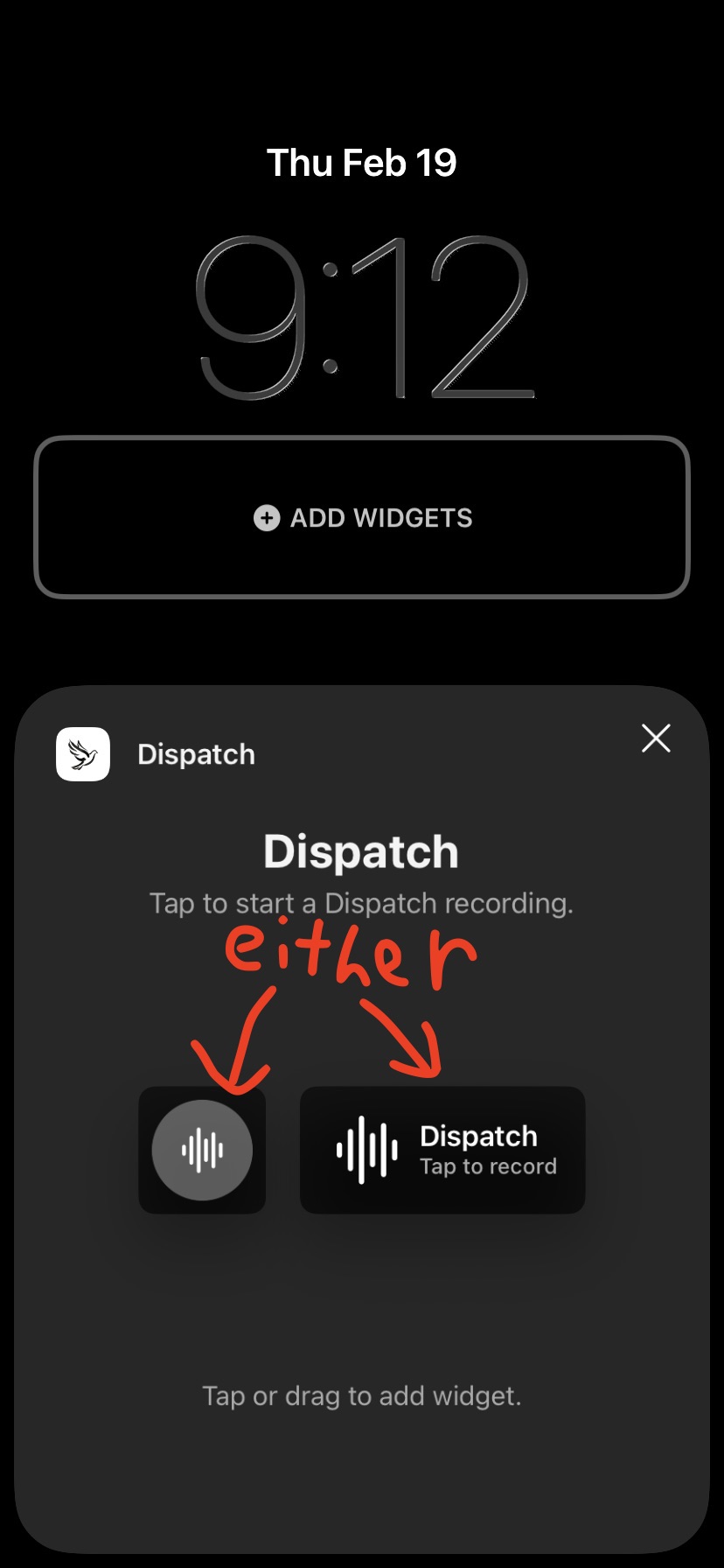 Select waveform widget
 Transcription
Android
- Local — Downloads a Parakeet speech model to your phone (Default ~126 MB, or High ~631 MB). Nothing leaves your device.
- Gemini (OpenRouter) — Uses Gemini Flash via OpenRouter. Better accuracy, requires internet. Setup
iOS
- On-device — Uses Apple's SpeechAnalyzer. Requires iOS 26 and iPhone 12 or newer.
- Apple Cloud — Uses Apple's Speech Recognition servers. Available on all devices. Free, requires internet.
- Gemini (OpenRouter) — Uses Gemini Flash via OpenRouter. Better accuracy. Setup
Transcripts save as .md files alongside each recording.
Cloud transcription setup
- Create an account at openrouter.ai
- Go to Settings → API Keys → Create Key → copy it
- In Pigeon, select Gemini transcription and paste the key
$5 covers roughly 50 hours of recording.
Webhooks
iPhone only for now.
Pigeon can send each recording to a URL you control.
- Open settings and turn on send to webhook
- Paste the address, copy the secret Pigeon made to your server, then tap send test
The secret is sent with every request so your server knows it's you.
The webhook guide covers the receiver, the payload, and a way to send one test before you have a server.
Agents
Two commands work across all agents: /pigeon-work reads your transcripts, executes what it can (code, research, analysis), and surfaces the rest. /pigeon-route just routes ideas to the right files without making code changes.
Sync transcripts to your computer
Google Drive sync
Syncs your Drive pigeon/ folder to a local folder. Installs rclone and schedules hourly syncing.
curl -sL https://pigeon.newyorkai.org/setup.sh | bash irm https://pigeon.newyorkai.org/setup.ps1 | iex curl -sL https://pigeon.newyorkai.org/setup.sh | bash iCloud (iOS)
In Pigeon settings, switch the save location to iCloud. Recordings and transcripts sync to your other Apple devices automatically.
Obsidian Sync
Change the save location in Pigeon settings to your Obsidian vault folder. In Obsidian, enable audio under Settings > Sync to include recordings.
Claude Code
Install the Pigeon plugin. Reads directly from Google Drive via MCP or falls back to a local folder.
Add the plugin source
/plugin marketplace add derek-larson14/delegate-plugins Install the Pigeon plugin
/plugin install pigeon@delegate-plugins /pigeon:work (execute on tasks) and /pigeon:route (route ideas to files).
Claude Co-Work
Same plugin, different install path. Enable the Google Drive connector in Co-Work settings so Claude can read your transcripts directly.
- Click Customize in the left sidebar
- Click Browse Plugins
- Go to the Personal tab
- Click Add marketplace from GitHub
- Paste:
derek-larson14/delegate-plugins - Install pigeon
/pigeon:work (execute on tasks) and /pigeon:route (route ideas to files).
For the full Delegate workspace in Claude Code, check out Delegate.
Cursor, Codex, Gemini CLI & more
One command installs globally so /pigeon-work and /pigeon-route work from any project.
mkdir -p ~/.cursor/commands && curl -sLo ~/.cursor/commands/pigeon-work.md https://pigeon.newyorkai.org/commands/pigeon-work.md && curl -sLo ~/.cursor/commands/pigeon-route.md https://pigeon.newyorkai.org/commands/pigeon-route.md mkdir "$env:USERPROFILE\.cursor\commands" -Force >$null; iwr https://pigeon.newyorkai.org/commands/pigeon-work.md -OutFile "$env:USERPROFILE\.cursor\commands\pigeon-work.md"; iwr https://pigeon.newyorkai.org/commands/pigeon-route.md -OutFile "$env:USERPROFILE\.cursor\commands\pigeon-route.md" mkdir -p .github/prompts && curl -sLo .github/prompts/pigeon-work.prompt.md https://pigeon.newyorkai.org/commands/pigeon-work.md && curl -sLo .github/prompts/pigeon-route.prompt.md https://pigeon.newyorkai.org/commands/pigeon-route.md mkdir .github\prompts -Force >$null; iwr https://pigeon.newyorkai.org/commands/pigeon-work.md -OutFile .github\prompts\pigeon-work.prompt.md; iwr https://pigeon.newyorkai.org/commands/pigeon-route.md -OutFile .github\prompts\pigeon-route.prompt.md Copilot prompts are per-project. Run this in each project you want to use Pigeon with.
mkdir -p ~/.codex/skills/pigeon-work ~/.codex/skills/pigeon-route && curl -sLo ~/.codex/skills/pigeon-work/SKILL.md https://pigeon.newyorkai.org/commands/pigeon-work.skill.md && curl -sLo ~/.codex/skills/pigeon-route/SKILL.md https://pigeon.newyorkai.org/commands/pigeon-route.skill.md mkdir "$env:USERPROFILE\.codex\skills\pigeon-work","$env:USERPROFILE\.codex\skills\pigeon-route" -Force >$null; iwr https://pigeon.newyorkai.org/commands/pigeon-work.skill.md -OutFile "$env:USERPROFILE\.codex\skills\pigeon-work\SKILL.md"; iwr https://pigeon.newyorkai.org/commands/pigeon-route.skill.md -OutFile "$env:USERPROFILE\.codex\skills\pigeon-route\SKILL.md" mkdir -p ~/.gemini/skills/pigeon-work ~/.gemini/skills/pigeon-route && curl -sLo ~/.gemini/skills/pigeon-work/SKILL.md https://pigeon.newyorkai.org/commands/pigeon-work.skill.md && curl -sLo ~/.gemini/skills/pigeon-route/SKILL.md https://pigeon.newyorkai.org/commands/pigeon-route.skill.md mkdir "$env:USERPROFILE\.gemini\skills\pigeon-work","$env:USERPROFILE\.gemini\skills\pigeon-route" -Force >$null; iwr https://pigeon.newyorkai.org/commands/pigeon-work.skill.md -OutFile "$env:USERPROFILE\.gemini\skills\pigeon-work\SKILL.md"; iwr https://pigeon.newyorkai.org/commands/pigeon-route.skill.md -OutFile "$env:USERPROFILE\.gemini\skills\pigeon-route\SKILL.md" mkdir -p .clinerules/workflows && curl -sLo .clinerules/workflows/pigeon-work.md https://pigeon.newyorkai.org/commands/pigeon-work.md && curl -sLo .clinerules/workflows/pigeon-route.md https://pigeon.newyorkai.org/commands/pigeon-route.md mkdir .clinerules\workflows -Force >$null; iwr https://pigeon.newyorkai.org/commands/pigeon-work.md -OutFile .clinerules\workflows\pigeon-work.md; iwr https://pigeon.newyorkai.org/commands/pigeon-route.md -OutFile .clinerules\workflows\pigeon-route.md Cline workflows are per-project. Run this in each project you want to use Pigeon with.
mkdir -p .windsurf/workflows && curl -sLo .windsurf/workflows/pigeon-work.md https://pigeon.newyorkai.org/commands/pigeon-work.md && curl -sLo .windsurf/workflows/pigeon-route.md https://pigeon.newyorkai.org/commands/pigeon-route.md mkdir .windsurf\workflows -Force >$null; iwr https://pigeon.newyorkai.org/commands/pigeon-work.md -OutFile .windsurf\workflows\pigeon-work.md; iwr https://pigeon.newyorkai.org/commands/pigeon-route.md -OutFile .windsurf\workflows\pigeon-route.md Windsurf workflows are per-project. Run this in each project you want to use Pigeon with.
Run on a schedule
Process transcripts automatically so you talk into your phone and come back to finished work. In Claude Code, run /pigeon:schedule. In Co-Work, set up a scheduled session.
Claude Code
Run /pigeon:schedule and it will walk you through choosing a command (work or route), picking a frequency, and installing a launchd job that runs it automatically.
Co-Work
Go to Customize → Scheduled Sessions → New Session. Set the command to /pigeon:work or /pigeon:route and choose your frequency. Co-Work handles the rest.
Running agents unattended. When Pigeon runs on a schedule, voice transcripts flow into an agent that can read files, write files, and execute code without you watching. The plugin commands scan for prompt injection, but no scan is perfect. Review your logs periodically. If you want an extra layer of protection, install Belay.
Only set this up if you trust the full chain: your phone, your cloud sync, and the agent's tool access. If something in that chain is compromised, a manipulated transcript could trigger real actions on your computer.
Chatbots
Chatbots work best with Google Docs. If you save transcripts as Google Docs (toggle in app settings), any chatbot with Drive access can read them directly. Markdown files need to be opened as Google Docs first.
ChatGPT
Click + → Add from apps → connect Google Drive. Works best with Google Docs format. Full synced access requires Team or Enterprise. Plus users can access files through Deep Research.
Claude
Create a Project and add your transcripts from Google Drive. Files you add stay in sync, but new transcripts need to be added manually. Or click the Google Drive icon in any chat to attach individually. Requires Pro or higher.
Gemini
Native Google Drive access. Type @Drive in chat or use the Gemini side panel in Drive. Try: "In my pigeon folder, go through each file that starts with pigeon_ and summarize the key ideas from each one." Requires Google AI Pro or Google Workspace.